Introduction
This documentation aims to teach how to use laptop, ipad or iphone to connect to the home ubuntu PC
Tools
- Sunshine
- Moonlight
- Tailscale
- Termius(mobile devices only)
Workflow
SSH
Firstly, download Tailscale using the command
curl -fsSL https://tailscale.com/install.sh | sh
then run
sudo taliscale up
to finish the set up. Remember to create an account and log in Tailscale.
On the host machine, run tailscale set --ssh to enable SSH access from other devices.
Download Tailscale on client devices too, from their download page. Log in with the account you just created.
Now you can ssh into the home server!
For mobile devices, download Termius from the app store then add the host to the known host list with the host IP given by tailscale. Enter the username and passward of the home PC user, click on the host then the terminal should show up.
If you wish to automatically boot Tailscale at startup, run
sudo systemctl enable --now tailscaled.service
Stream
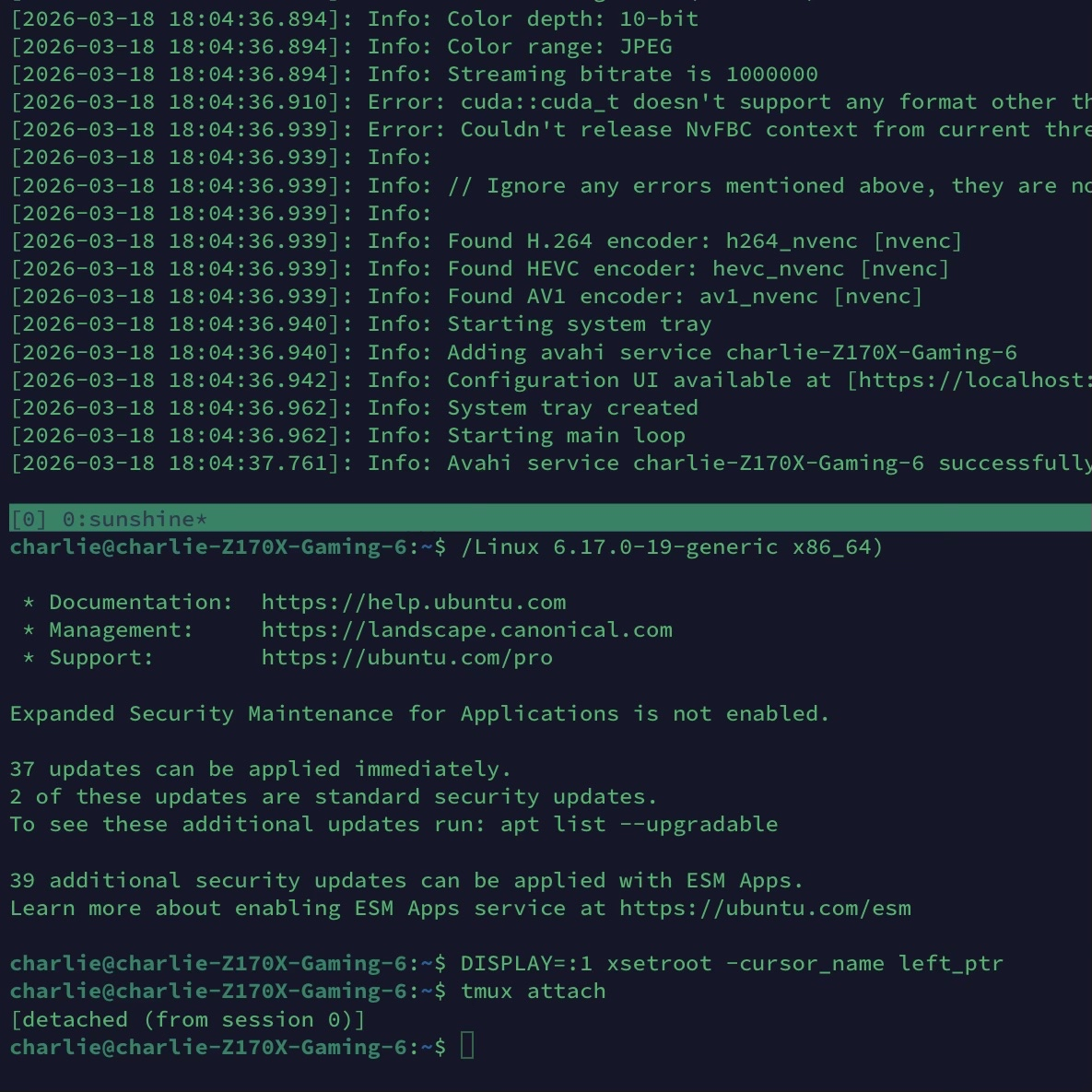
Then on the host, download from Sunshine official github page and open the browser, type https://localhost:47990/ (replace “localhost” with the host IP), register with username and password. Run sunshine to start it.
After that, download Moonlight from the official website or app store depending on the client device, click on add a host and type the host IP. It will prompt you to unlock the access using a PIN it gives, open Sunshine webUI again on the brower, click on PIN in the ribbon, enter the PIN and the device name to unlock the access.
Now click on the corresponding PC icon in Moonlight, you can see the host screen in real time. (Host must have a monitor, technically there is a workaround but it would way less complicated to just connect the home server to a display)